Dashboard Overview
When you log in to BeanRails, you land on the Dashboard. Here's a quick orientation.
Navigation Menu
| Menu Item | What it does |
|---|---|
| Dashboard | This page — a snapshot of your business |
| Contacts | Manage your clients and work sites |
| Quotations | Create and track quotes |
| Invoices | Billing and payment tracking |
| Works | All your works — scheduled, in progress, completed |
| Fleet | Vehicles and vehicle supplies |
| Calendar | Works and documents on a calendar |
| Logs | Activity history across your account |
| Reports | Reports on your works and documents |
Settings are under the gear icon in the top bar. See Settings.
Global search (Beta)
The Search or jump to box in the top bar finds records and opens common pages from anywhere in the app. Open it by clicking it, or press Ctrl + K (⌘ + K on Mac) or /.
- Type at least 2 characters.
- Press Enter to search. Results are grouped by type, up to 5 per group.
- Use the arrow keys and Enter, or click, to open a result. Esc closes the search.
| Group | Matches |
|---|---|
| Contacts | Company name or contact number (beginning of the text) |
| Works | Work number, company name or attention — today's works only |
| Quotations / Invoices | Document number (beginning of the text) |
With an empty search box, the panel shows quick actions (New Work, New Contact, New Quotation, New Invoice), links to each list page, and your recent searches. You only see groups and actions for modules your role can access.
To find an older work, use the search on the Works list instead.
The dashboard only shows the sections for modules your role can view.
Reminders
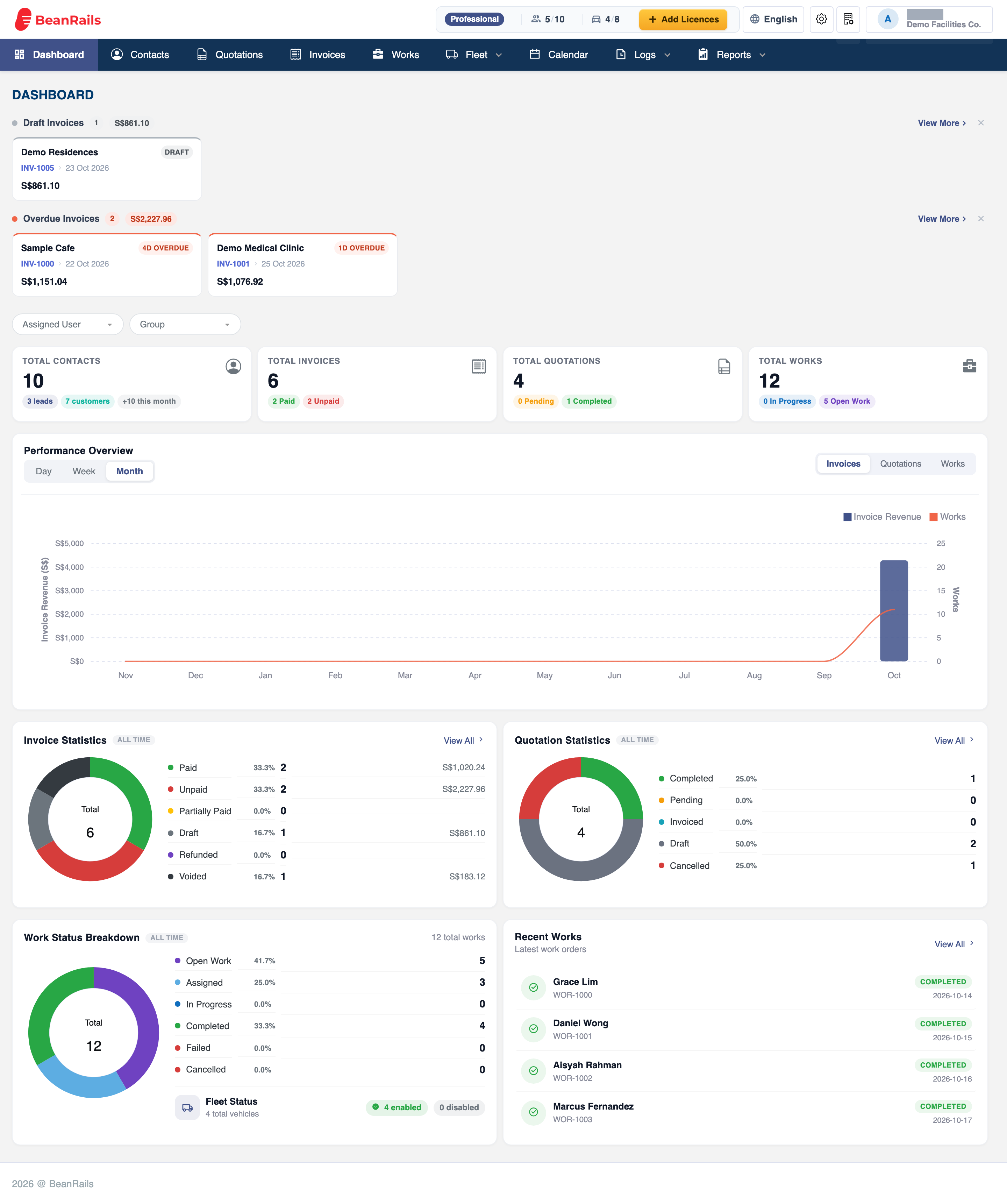
At the top of the dashboard, reminder cards list invoices that need attention. Each card shows the total amount and a few invoices; click an invoice to open it, or View More to see the full list on the Invoices page. Click × to dismiss a card.
| Reminder | What it lists |
|---|---|
| Unpaid Completed Work | Unpaid or partially paid invoices whose linked works are completed — work you have done but not been paid for |
| Draft Invoices | Invoices still in Draft |
| Overdue Invoices | Unpaid or partially paid invoices past their due date |
For partially paid invoices, the amounts show the remaining balance.
Filters
| Filter | Description |
|---|---|
| Currency | Shown when you have invoices in more than one currency. Pick a currency to see its amounts |
| Assigned User / Group | Show figures only for contacts assigned to these users or in these groups. Shown to the team owner and to members who can assign contacts to users |
Click Clear to remove the user and group filters.
Summary cards
| Card | What it shows |
|---|---|
| Total Contacts | Number of contacts, split into leads and customers, plus how many were added this month |
| Total Invoices | Number of invoices, split into paid and unpaid |
| Total Quotations | Number of quotations, split into pending and completed |
| Total Works | Number of works, split into in progress and new |
Charts
| Section | What it shows |
|---|---|
| Performance Overview | Invoices, quotations, and works over time. Switch between Day, Week, and Month |
| Invoice Statistics | Invoices by status — Paid, Unpaid, Partially Paid, Refunded, Voided |
| Quotation Statistics | Quotations by status — Completed, Pending, Invoiced, Cancelled |
| Work Status Breakdown | Works by status, with the total |
| Fleet Status | Number of vehicles, and how many have an enabled or disabled licence |
| Recent Works | The latest work orders and their status |