Contact Groups
Contact Groups let you organise contacts into named segments — for example, Premium Clients, Residential, or Commercial — and control which team members can see them.
Accessing Contact Groups
Click the gear icon in the top bar, then choose Contact Groups under Customisation.
Contact Groups Table
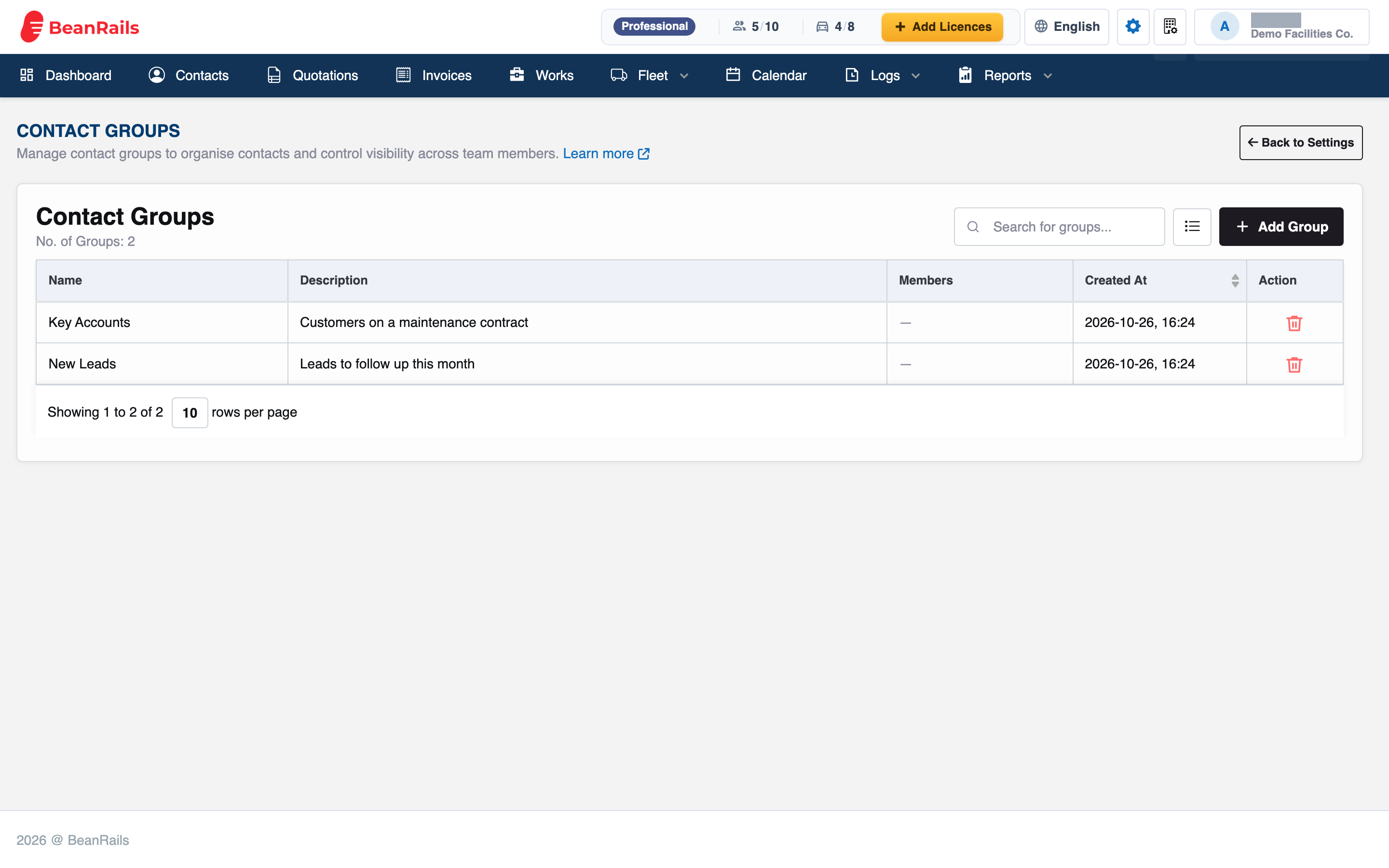
| Column | Description |
|---|---|
| Name | Group name |
| Description | Optional notes |
| Members | Team members assigned to this group |
| Created At | Date the group was created |
Creating a Contact Group
- Click + Add Group
- Fill in the fields:
| Field | Description |
|---|---|
| Group Name | Required label for the group |
| Description | Optional notes |
| Members | Team members assigned to manage or view this group |
- Click Save
Adding Contacts to a Group
Open a contact from the Contacts list and assign it to one or more groups from the contact's detail page.
Editing a Group
Click on any group row to edit its name, description, or assigned members.
Deleting a Group
Click the delete icon on a group row to remove it. Deleting a group does not delete the contacts or members it contained.
tip
Use groups with the Access assigned contacts only role permission to restrict each team member to only seeing the contacts in their assigned group.