Planner
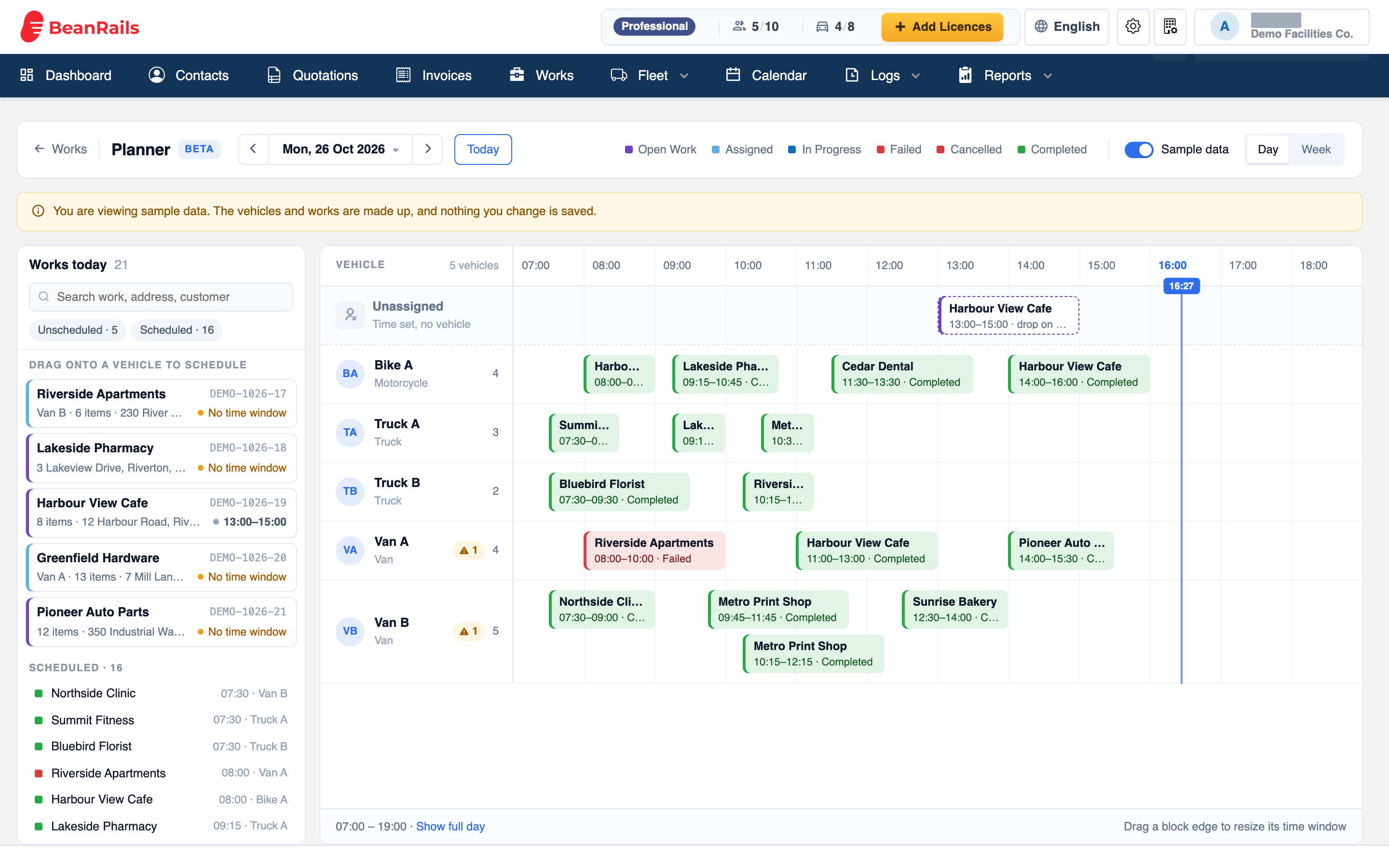
The Planner is a timeline view of your works. It shows each vehicle as a row across the day, so you can see who is busy, who is free, and which works still need a time or a vehicle. You schedule a work by dragging it onto a vehicle's row.
The Planner is in Beta.
Opening the Planner
- Go to Works.
- In the page header, switch from List to Planner.
To go back, click ← Works at the top left of the Planner.
The Planner works from each work's time window, so it is only available when both the Time Window From and Time Window To work fields are enabled. If you don't see the List | Planner switch, enable both fields under Settings → Custom Headers → Work tab.
Day and Week views
Use the Day | Week switch at the top right.
| View | What it shows |
|---|---|
| Day | One row per vehicle for the selected day, plus an Unassigned row for works that have a time but no vehicle |
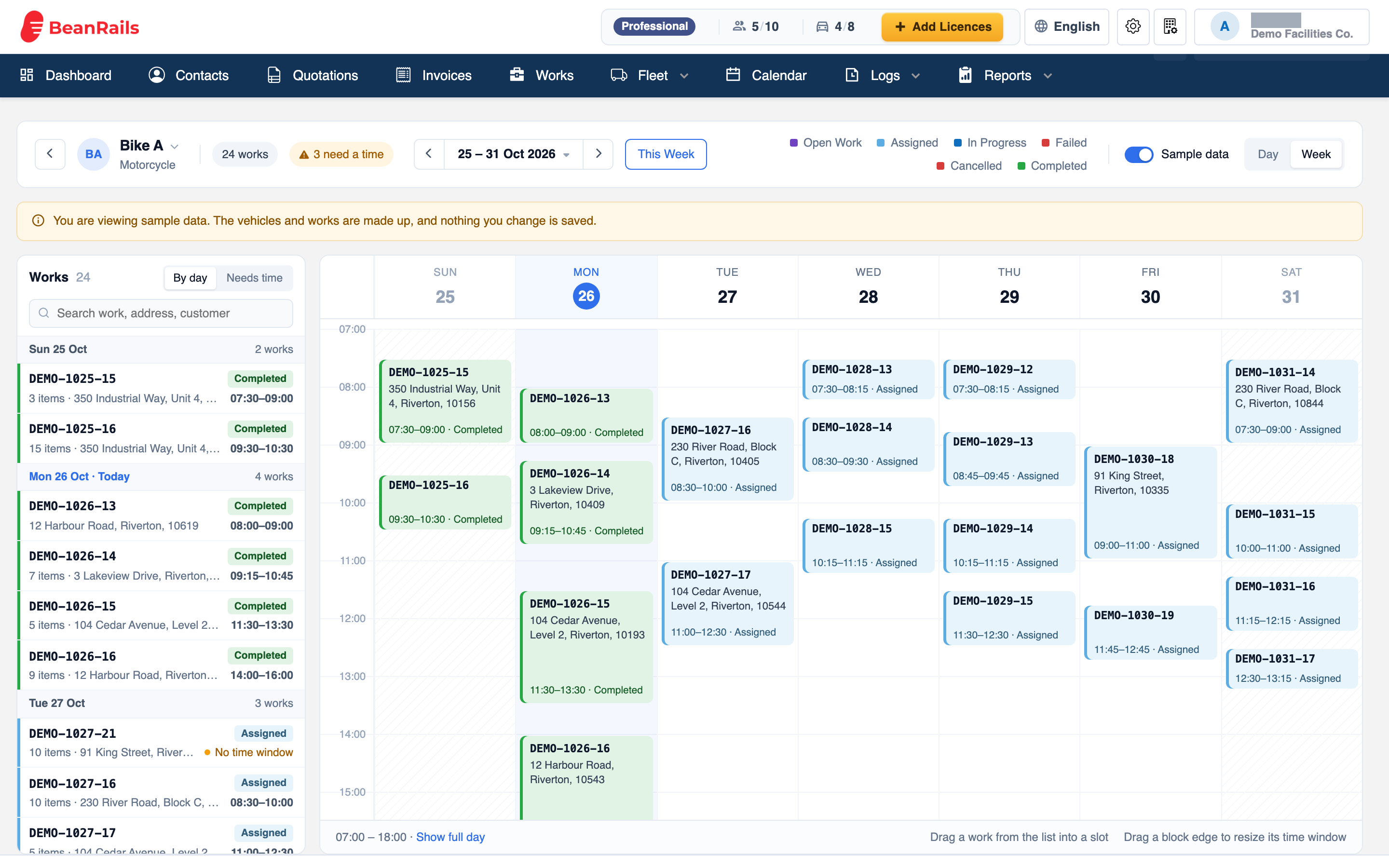
| Week | One vehicle's works across the week, one column per day |
Long vehicle names wrap onto two lines; hover over a name to see it in full. To make the vehicle column wider or narrower, drag its right edge. The width is remembered in your browser; double-click the edge to reset it.
To open the Week view for a vehicle, click the vehicle's name in the Day view. In the Week view, click the vehicle's name to switch to another vehicle, or click a day's heading to open that day in the Day view. Click ‹ to return to the Day view.
Moving between dates
- Use the ‹ and › arrows to go back or forward one day (or one week in the Week view).
- Click the date to pick one from the calendar.
- Click Today (or This Week) to return to the current period.
Working hours
By default the timeline shows working hours: 07:00–19:00 in the Day view and 08:00–18:00 in the Week view. The range widens automatically if a work falls outside it. Click Show full day below the timeline to see all 24 hours, and Show working hours to go back.
In the Day view, a vertical line marks the current time, and a vehicle with nothing scheduled shows Free all day.
The works list
The panel on the left lists the works for the selected day.
| Element | Description |
|---|---|
| Search | Search by work number, address, or customer |
| Unscheduled chip | Show only works that still need a time window or a vehicle |
| Scheduled chip | Show only works already on the timeline |
Works that still need a time window or a vehicle appear as cards with a coloured stripe under Unscheduled. A card shows No time window when the work has no time set yet. Works that already have both, and works that are in progress, completed, failed, or cancelled, appear as compact rows under Scheduled.
Click a work to see a summary: customer, contact, address, items, time window, vehicle, and instructions. From the summary, click Open full details to open the full work form, or Schedule… to set its date, time, and vehicle. Double-click a work — in the list or on the timeline — to go straight to the Update Work window (or to the full work form if you can't reschedule it).
If a vehicle has works on the day with no time window, a warning icon appears next to its name. Click the icon to list just those works so you can drag them onto the vehicle's row.
In the Week view, the list shows the vehicle's works grouped By day. Switch to Needs time to see only the works that still need a time window.
Filters (Day view)
Click Filters to narrow the works list. These filters change the list only — the timeline still shows the selected day.
| Filter | Description |
|---|---|
| Today / Next 7 Days / This Month | List works across a date range instead of a single day |
| Work date range | Pick a custom range of up to 31 days |
| Contact | Works for one or more contacts |
| Zone | Works in one or more zones |
| User | Works for contacts assigned to these users |
| Group | Works for contacts in these groups |
| New Contacts | Works for contacts created Today, in the Last 7 Days, in the Last 30 Days, or in a Custom range |
| Renewal | Only the last work in each schedule group (see Schedule groups) |
User and Group appear only if you have permission to assign contacts to users. Click Clear to remove all filters.
When the list holds many works, it loads the first batch and shows Load more for the rest.
Status legend
The status legend at the top right shows the colour of each work status. Click a status to show only works with that status; click more than one to combine them. Click Clear to show all statuses again.
Scheduling a work
Drag and drop
- Drag a work from the list onto a vehicle's row, at the time you want it to start.
- The Update Work window opens with the date, time window, and vehicle filled in from where you dropped it.
- Adjust if needed, then click Save Changes.
A new time window is one hour long by default, and times snap to 15-minute steps. Dropping a work in the Day view moves it to the day on screen, so you can pull in works from other dates by first listing them with a date range filter.
You can also drag a block that is already on the timeline to another time or another vehicle.
Resizing a time window
Drag the left or right edge of a block on the timeline to change when it starts or ends. The Update Work window opens so you can confirm the change.
The Update Work window
| Field | Description |
|---|---|
| Date | The work date |
| Time Window | Start and end time, in 24-hour format. The end time must be after the start time |
| Vehicle | The vehicle to assign. Leave it empty to keep the work unassigned |
Below the vehicle, BeanRails tells you how many other works that vehicle has on the same day and whether the new time window overlaps any of them. Cancelled and failed works are not counted.
Click Full details to open the complete work form instead.
Removing a work from the schedule
In the Update Work window, click Remove from schedule. This clears the time window and unassigns the vehicle. The work stays on the same date and goes back to the list as unscheduled.
Completed works are locked in the Planner unless Allow update completed works is turned on in Organisation Settings. Works you don't have permission to update cannot be dragged.
Creating a work from the Planner
- Click New work at the top right to create a work for the selected day.
- In the Day view, double-click a vehicle's row to create a work at that time. The work date, a one-hour time window, and the vehicle are filled in for you.
The usual work form opens. See Creating a work.
Sample data
Turn on Sample data at the top right to try the Planner with made-up vehicles and works. You can drag, resize, and reschedule sample works freely — nothing is saved. Turn the switch off to return to your real works.
Using the Planner on a phone
On a phone, the Planner shows the same information as a list instead of a timeline, with Day and Week tabs. Drag and drop is not available on phones; tap a work to open the Update Work window and set its date, time window, and vehicle there.
From the Works list on a phone, tap Planner at the top right of the page.