Notifications
Control which automated notifications BeanRails sends to your customers when work or document statuses change.
Accessing Notifications
Click the gear icon in the top bar, then choose Notifications under Team & Account.
The page is split into two sections: Work Notifications and Document Notifications. Click any row to open its configuration modal.
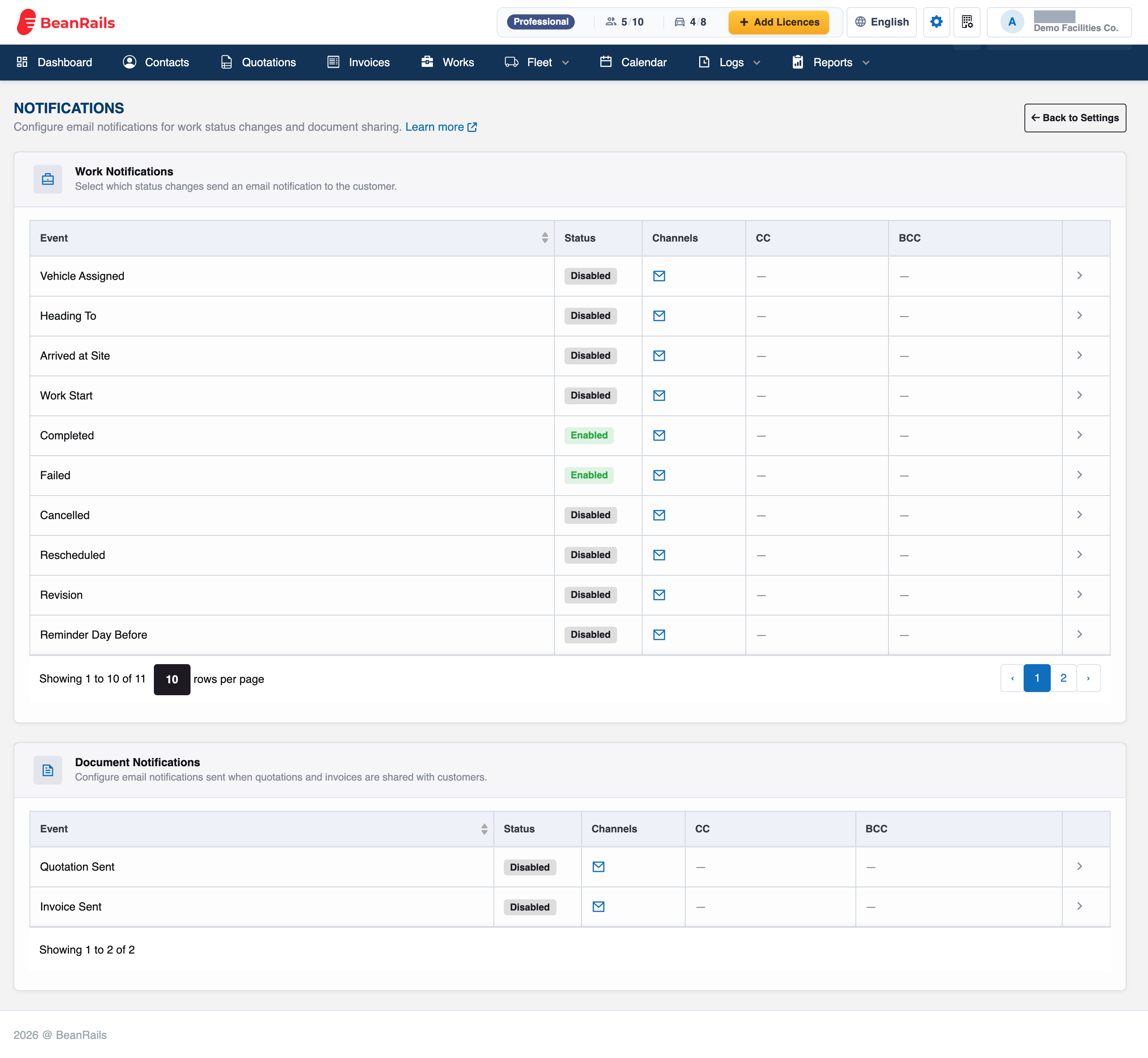
Each row shows the event, whether it is Enabled or Disabled, the channels it sends on, and any CC or BCC addresses.
Work Notifications
Sent to the contact linked to a work when the work status changes:
| Event | Sent when… |
|---|---|
| Vehicle Assigned | A vehicle/driver is assigned to the work |
| Heading To | The technician marks themselves as heading to the work |
| Arrived at Site | The technician marks arrival at the work site |
| Work Start | The technician taps Start Work on site — this also moves the work to In Progress |
| Completed | Work is marked complete |
| Failed | Work is marked as failed |
| Cancelled | Work is cancelled |
| Rescheduled | Work date/time is changed |
| Revision | A completed, failed, or cancelled work is reopened with Restart Work |
| Reminder Day Before | Sent the day before the scheduled date |
| Reminder Day Of | Sent on the morning of the scheduled date |
Document Notifications
| Event | Sent when… |
|---|---|
| Quotation Sent | A quotation is emailed to a contact |
| Invoice Sent | An invoice is emailed to a contact |
Configuring a Notification
Click any notification row to open the configuration modal. It has three sections:
Enable toggle
Turn the notification on or off globally. When disabled, no messages are sent for that event regardless of other settings.
General tab
| Setting | Description |
|---|---|
| Notification Channels | Which channels the notification is sent on. Email is the only channel available. |
| Reminder Time | For reminder events only — set the time of day the reminder is sent (uses your team timezone) |
Email tab
| Setting | Description |
|---|---|
| Subject | Customise the email subject line |
| CC | Carbon copy an additional address (e.g. a manager) |
| BCC | Blind carbon copy an address (e.g. an audit inbox) |
| Email Body | Rich text editor to customise the full email body |
Inserting variables
The Subject and Email Body fields each have an Insert variable dropdown. Pick a variable and it is inserted at the cursor as a placeholder (e.g. {{ work_number }}), which is replaced with the real value when the email is sent.
Subject variables
| Work notifications | Document notifications |
|---|---|
| Company Name | Company Name |
| Work Number | Document Type (Invoice or Quotation) |
| Report Number | Document Number |
Email body variables
| Work notifications | Document notifications |
|---|---|
| Company Name | Company Name |
| Work Number, Work Date | Document Number, Document Type |
| Attention (defaults to Valued Customer) | Billing Attention (defaults to Valued Customer) |
| Address, City, State, Postcode | Due Date |
| Time Window From, Time Window To | Currency |
| Vehicle | Total Amount |
| Tracking Link |
Variables that may be empty, such as Address or Vehicle, print - when there is no value.
Click Preview to see a rendered preview of the email before saving.
Enable the Day Before reminder to reduce no-shows — customers appreciate the heads-up.